
The Users Directory
Phase 8 — Integrations · OpenFrame Onboarding
Once you've connected a customer's Microsoft 365 or Google Workspace tenant, OpenFrame lists that client's people under Directory → Users. It's one place to look up anyone across all your clients: their account, devices, groups, licences and admin roles.
Quick steps
- Connect the customer's tenant under Directory → Cloud Tenants (see Integration).
- Open the navigation menu → Directory → Users.
- Search for a person or filter by Customer.
- Click the arrow on a row to open the user's details.
Reading the list
Each row shows:
- User: name, email and, where it applies, an admin badge such as GLOBAL ADMIN. An icon shows the directory the record comes from, for example Microsoft 365.
- Customer: the customer and the connected tenant the user belongs to.
- Devices: devices linked to the user (for example +1 when there's more than one).
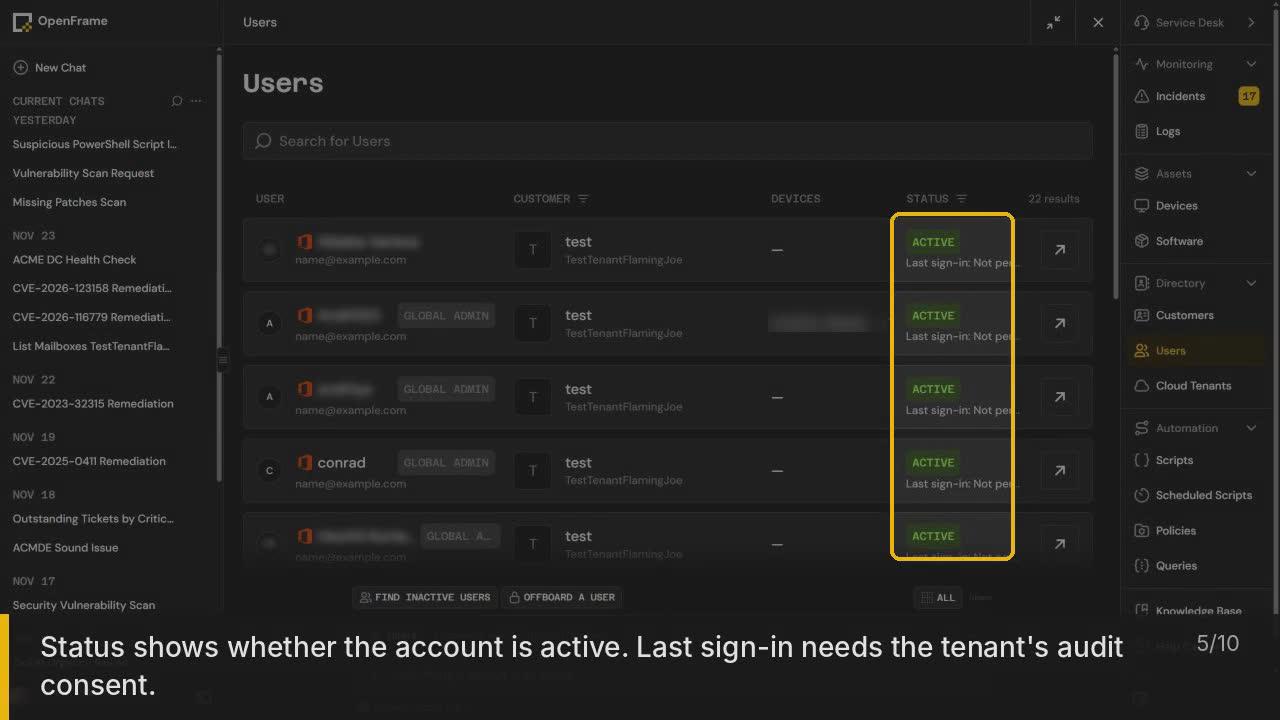
- Status: ACTIVE or SUSPENDED, with the last sign-in underneath.
Use Search for Users and the funnel on Customer to narrow the list. The arrow at the end of a row opens the user in a new tab.
Last sign-in shows "Not permitted"? OpenFrame isn't allowed to read sign-in dates for that tenant yet. Re-authorize the tenant under Directory → Cloud Tenants, granting the audit consent, to turn them on.
A user's details
The user page has Suspend and Edit User at the top, and four tabs:
- Details:
- Identity: primary email, aliases, account status, customer, job title, department, manager and phone.
- Access: top admin role, other admin roles, whether a second factor is registered, last sign-in and when the account was created.
- Where this record comes from: the connected tenant.
- Devices: the devices linked to this person.
- Groups: the groups they're in.
- Licences: the licences assigned to them.
Changes such as suspending a user or editing their details go to the connected tenant, within the access you granted when you connected it (Google Workspace connections are read-only).
Mingo on this page
The chat beside the page offers Find inactive users and Offboard a user. You can also ask in your own words, for example "Which users in [customer] have no MFA?"
Common questions
Can OpenFrame show my clients' Microsoft 365 users? Yes. Connect the tenant, then find everyone under Directory → Users.
Can I see a user's licences and groups? Yes, on the user's Licences and Groups tabs.
Can I see whether a user has MFA set up? Yes. Second factor on the Details tab shows whether one is registered.
Can I see who the admins are? Yes. Admins carry a badge such as GLOBAL ADMIN in the list, and their roles show under Access.
Can I suspend or edit a user from OpenFrame? For Microsoft 365, yes: use Suspend or Edit User, or ask Mingo. Google Workspace is read-only.
How do I offboard a leaver? Use the Offboard a user quick action and let Mingo walk through it with you.
Why is last sign-in "Not permitted"? OpenFrame isn't allowed to read sign-in dates for that tenant yet. Re-authorize it under Cloud Tenants.
Where are these users on a single customer? On the customer's Users tab.
Quick checklist
- Connected at least one customer tenant
- Found a user with search or the Customer filter
- Opened a user and checked Details, Devices, Groups and Licences
- Re-authorized any tenant showing "Not permitted" for last sign-in
What's next
Connect more tenants in Integration, and use Audit & Activity Logs to see changes made in connected tenants.