
You ran the installer. Now make sure OpenFrame actually sees the machine — and if it doesn't, know exactly where to look. This is a two-minute check that saves you from assuming a device is managed when it isn't.
The quick check
-
Navigation menu → Assets → Devices.
-
Find your machine in the list. You can search by name in the Search for Devices and Users box if the list is long.
-
Look at the dot on the device icon (hover it for the last-seen time):
- Green (online) — it's connected and reporting. Done.
- Red (offline) — it enrolled but isn't currently checking in. See troubleshooting below.
The Status badge next to it should read Managed, with the last check-in time underneath.
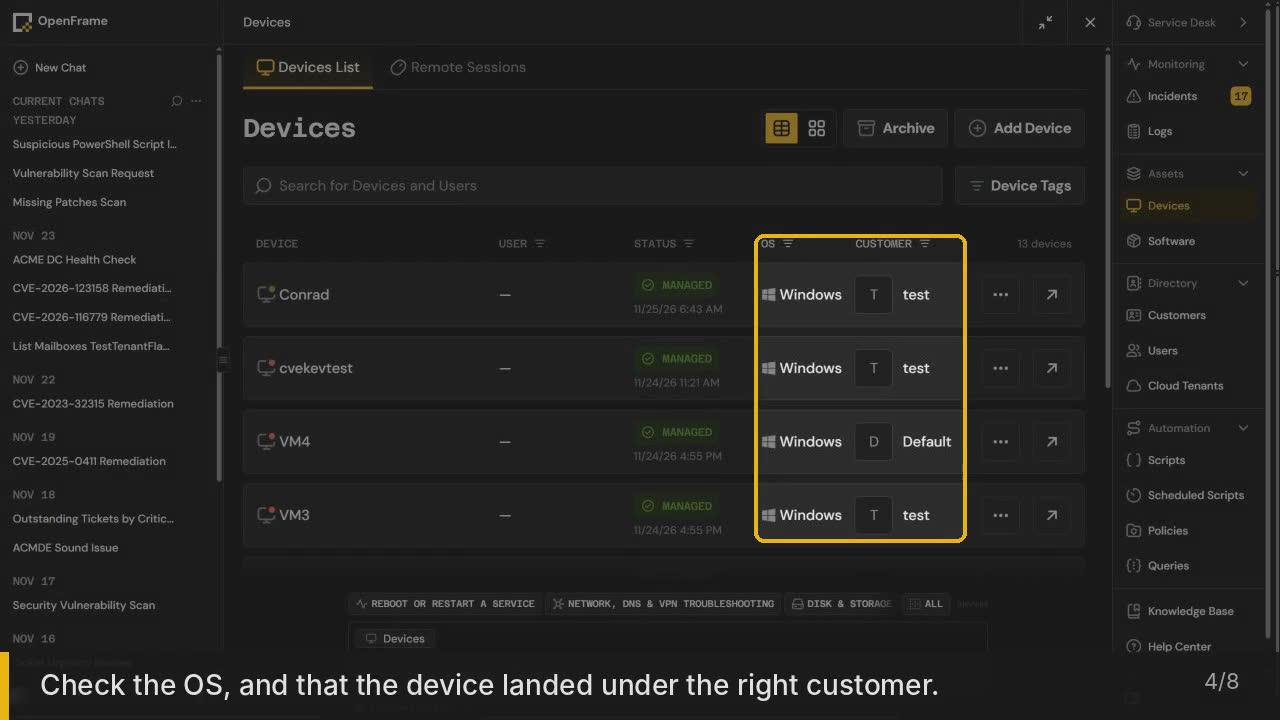
Each row also shows the OS (macOS / Windows) and the Customer it's assigned to — a good moment to confirm the device landed under the right client.
Once you've got more than a handful enrolled, use the funnel on the Status column and filter Connectivity to Offline to see only the devices that aren't checking in.
Confirm it's really reporting
A device that's truly managed has live data behind it. Click the device name to open its detail page and confirm real information is flowing:
- Hostname, Device model, Type, Serial Number and Customer are populated on the Overview tab.
- The Updated timestamp is recent (it refreshes as the device checks in).
- The other tabs — Vulnerabilities, Incidents, Policies, Security, Agents, Tickets, Hardware, OS, Network, Users, Local Accounts, Directory, Software, Device Logs (Beta), Remote Sessions and Assigned Articles — show actual data. Hardware, for example, should list disks, RAM, CPU, and battery health.
If the detail page is full of real specs, you're genuinely managing that machine — not just looking at an enrollment record.
For an online device you'll also see Remote Control and Remote Shell available at the top right — proof the connection is live (covered in Phase 7).
If the device doesn't show up at all
Work down this list:
- Give it a minute. Enrollment-to-first-checkin isn't instant. Refresh the Devices list after 60–120 seconds.
- Right customer? If you're filtering by customer or only scanning one client's devices, the machine may have enrolled under a different customer. Clear filters and search by name.
- Did the installer actually finish? Re-check the install terminal/PowerShell output for errors. An AV block or a missing
sudo/elevation will stop registration. Re-run with the fixes in the macOS or Windows install guide. - AV quarantine. If antivirus ate the client mid-install, it never registered. Add the exclusions from the install guide and run it again.
- Run the doctor command. The Add Device page has a doctor command at the bottom (under Device not appearing or stuck pending?). Run it on the machine; it diagnoses the install and repairs the agent, even if the install didn't complete.
If it shows up but is Offline
- Recently installed? First check-in can lag a couple of minutes. Wait and refresh.
- Is the machine on and awake? An offline status often just means the device is powered down, asleep, or off the network. Hover the device icon in the list for its last-seen time, or check Updated on its detail page.
- Network path. A firewall, proxy, or content filter between the device and your tenant can block check-ins. Confirm the machine can reach your OpenFrame server URL.
- Agent health. If it's online, awake, and networked but still offline, the agent/service may need a nudge — see Managing the OpenFrame Client — Updates & Recovery and Troubleshooting a Disconnected Device (Phase 10) for agent logs, service restarts, and token rotation.
Common questions
How do I know a device is online? A green dot on its icon in Assets → Devices. Red means offline. Hover the icon for when it was last seen.
How long until a new device shows up? Usually a minute or two. Refresh the list after 60 to 120 seconds.
The device says Managed but it is offline. Is that a problem? Not necessarily. Managed means the agent is enrolled; offline means it is not checking in right now, for example because the machine is off or asleep.
My device never appeared. What should I check? The installer output, antivirus quarantine, and whether it enrolled under a different customer. Then run the doctor command from the bottom of the Add Device page.
How do I see all offline devices? Use the funnel on Status and pick Offline under Connectivity.
How do I know the device is really sending data? Open it. The Overview should show hostname, model and serial number, Updated should be recent, and tabs like Hardware and Software should have real data.
Quick checklist
- Device appears under Devices
- Status shows Online
- It's assigned to the correct customer
- Detail page shows real hardware/network data and a recent Updated time
- (If applicable) Worked through the troubleshooting steps for a missing or offline device
What's next
One device verified, the pattern proven. Now scale it: Deploy at Scale via RMM / GPO / MDM for mass rollout, then tidy your fleet with Add a Device Display Name / Nickname and Organize Devices with Device Tags.
Checked against OpenFrame 1.7 (November 2026). Screens and defaults may shift between releases — when in doubt, what's in your console wins.