
Time to get a real machine reporting in. The OpenFrame agent is a single command — it pulls the client, installs it, and registers the Mac to the customer you choose. This walks you through doing one Mac by hand so you understand the flow before you deploy at scale.
Quick steps
- Go to Assets → Devices → Add Device.
- Pick the customer, choose macOS, and click Copy Install Command.
- On the Mac, paste the command into Terminal and enter the admin password when
sudoasks. - Within a minute or two the Mac appears under Devices with a green (online) dot.
Before you start
- You need an Admin role in OpenFrame.
- Have admin (sudo) rights on the Mac you're enrolling — the installer needs them.
- Know which customer this device belongs to. The wrong customer means the device shows up under the wrong client, so get this right at install time.
- macOS will likely flag the install at first (it's new software without an established reputation). That's expected — see Troubleshooting below.
Get the install command
- Navigation menu → Assets → Devices → Add Device. The New Device page opens.
- Under Select Customer, pick the client this Mac belongs to.
- Leave Remote Access Permission on the customer default (for example, Customer Default (Notify Only)) unless this Mac needs a different consent rule for remote control.
- Under Select Platform, choose macOS. Install Method is Script.
- (Optional but recommended) Click Add Device Tag to attach tags now, for example
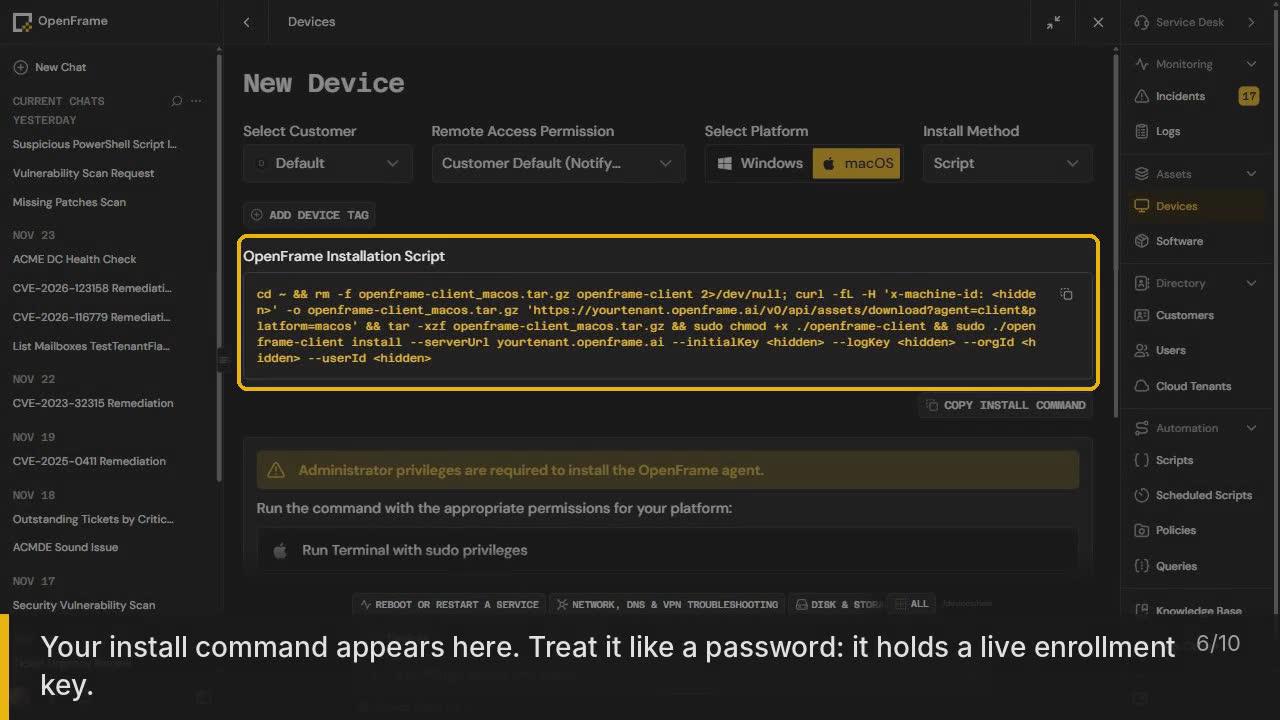
asset_tagwith the device's asset number, orType: laptop. It's applied when the device is created. Tagging at install saves you sorting devices later (see Organize Devices with Device Tags). - Your install command appears under OpenFrame Installation Script. Click Copy Install Command.
The command looks like this (your key and org ID are baked in — don't share them around):
bashcd ~ && rm -f openframe-client_macos.tar.gz openframe-client 2>/dev/null; \
curl -fL -H 'x-machine-id: <MACHINE_ID>' -o openframe-client_macos.tar.gz 'https://<your-tenant>.openframe.ai/v0/api/assets/download?agent=client&platform=macos' && \
tar -xzf openframe-client_macos.tar.gz && \
sudo chmod +x ./openframe-client && \
sudo ./openframe-client install --serverUrl <your-tenant>.openframe.ai --initialKey <YOUR_KEY> --logKey <YOUR_LOG_KEY> --orgId <YOUR_ORG_ID> --userId <YOUR_USER_ID>
In plain terms: it downloads the macOS client from your OpenFrame tenant, unpacks it, makes it executable, and runs install pointed at your tenant with an enrollment key and the customer's org ID.
The
--initialKeyis a live enrollment token. Treat the copied command like a credential — don't paste it into a public channel or a ticket a client can read.
Run it on the Mac
- On the target Mac, open Terminal.
- Paste the command and hit Return.
- Enter the local admin password when
sudoprompts. - Let it finish — it downloads, installs, and registers in one go.
That's it. No reboot needed. Without sudo the install fails silently, so make sure the password prompt appeared and was accepted.
Confirm it worked
Head to Devices — the Mac should appear with an Online status within a minute or two. For the full verification and what to do if it doesn't show up, see Confirm Your First Device Is Connected.
Troubleshooting
macOS or your AV blocked the install. This is the common one, and it's a false positive — new software just hasn't built reputation with security vendors yet. If the client gets quarantined, add these to your antivirus / security tool's exclusions:
/Library/LaunchDaemons/com.openframe.client.plist/Library/Application Support/OpenFrame/meshcentral-agent/
Or temporarily disable protection for the duration of the install, then re-enable it. OpenFrame is open-source software you can inspect on GitHub.
sudo rejected the password / permission denied. The account isn't a local admin. Use an admin account or have one handy.
Command fails to download. Check the Mac has outbound internet and isn't behind a proxy or content filter that blocks downloads from your OpenFrame tenant (<your-tenant>.openframe.ai).
Device not appearing, or stuck pending. Run the doctor command in Terminal. Copy it from the bottom of the Add Device page, under Device not appearing or stuck pending?. It diagnoses the install and repairs the agent, and works even if the agent didn't install correctly.
It installed but shows Offline. Give it a couple of minutes. If it persists, see the troubleshooting steps in Confirm Your First Device Is Connected and Troubleshooting a Disconnected Device (Phase 10).
Common questions
Does OpenFrame support macOS? Yes. The agent installs on Macs with one Terminal command from the Add Device page.
Do I need admin rights on the Mac? Yes. The installer runs with sudo. Without it the install fails silently.
Do I have to reboot the Mac? No.
macOS or my antivirus blocked the install. Is that normal? It can happen because the software is new to security vendors. Add /Library/LaunchDaemons/com.openframe.client.plist and /Library/Application Support/OpenFrame/meshcentral-agent/ to your exclusions and run the command again.
Can I reuse the same install command? For the same customer, yes. Copy it fresh for each customer, and for each device if you add a per-device tag such as an asset number.
Is the install command safe to share? Treat it like a password. It contains a live enrollment key for your tenant.
Can I tag the Mac while installing? Yes. Click Add Device Tag before copying the command. See Organize Devices with Device Tags.
Quick checklist
- Selected the correct customer
- Chose macOS and (optionally) added tags
- Copied the command and ran it in Terminal with sudo
- Added AV exclusions if the install was blocked
- Confirmed the Mac shows Online under Devices
What's next
Got a Mac in? Do the same for a PC — Install the OpenFrame Agent on Windows — then verify both with Confirm Your First Device Is Connected.
Checked against OpenFrame 1.7 (November 2026). The install command and client version come straight from your console's Add Device screen — always copy the current one rather than reusing an old command.