
Reviewed 24/11/2026
Run a Script on a Device
Phase 5 — Scripts & Automation · OpenFrame Onboarding
There are two places you can kick off a script: from the Scripts section (run one script against many devices) and from a device's own page (run against just that machine). They look similar but behave a little differently — especially around variables — so it's worth knowing both.
Quick steps
- Go to Automation → Scripts and open the script.
- Click Run Script, set the timeout and any arguments, variables or secrets.
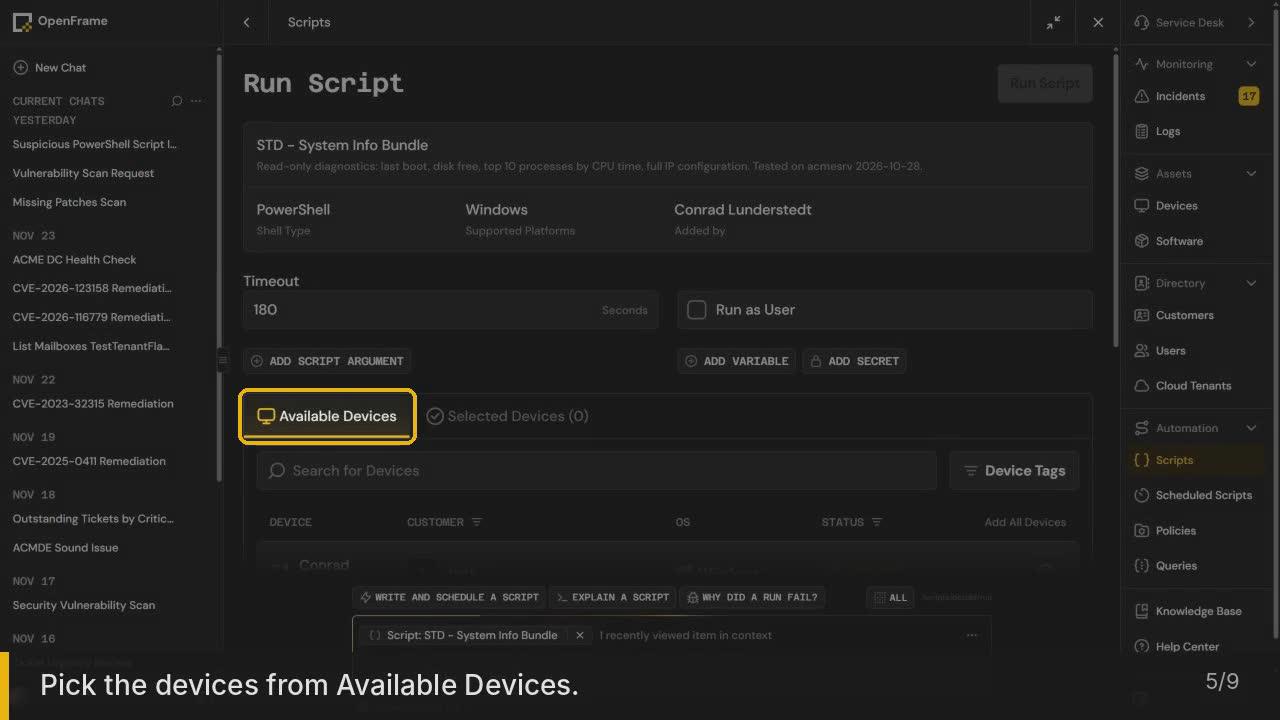
- Pick the devices: tick them, filter by Device Tags, or Add All Devices.
- Click Run Script and watch the Execution History tab.
Before you start
- The target device needs the OpenFrame agent installed and online (offline devices can't execute).
- The script's Supported Platform has to match the device's OS — OpenFrame only offers a script to machines that can run it.
- Know whether the script takes arguments, environment variables, or neither (the script's description/comments usually say).
Option A — Run from Scripts (one script → many devices)
This is the way to push a single script across a fleet.
- Go to Automation → Scripts and open the script.
- On the script's page, click Run Script.
- Set the Timeout (seconds) if the default doesn't fit, and turn on Run as User if the script needs the signed-in user's session.
- Add Script Argument, Add Variable and/or Add Secret to pass values for this run. This is your chance to override defaults without editing the script.
- Pick your targets in the device selector — tick individual machines from Available Devices, filter by Device Tags, or Add All Devices. Switch to Selected Devices to review scope.
- Click Run Script, then track progress on the script's Execution History tab (see Script Results & Output Logs).
Option B — Run from a Device (one device → pick a script)
When you're already looking at a single machine and want to act on it, run from there instead. Open the device's detail page and use its Run Script action (covered step-by-step in Running a Script, Phase 3). You choose a script, supply any inputs, and it runs against that one device.
Use this when you're troubleshooting a specific machine; use Option A when you're rolling something out broadly.
Why variables can behave differently
This is the part that trips people up:
- Script Arguments are passed on the command line (an argument with an empty value acts as a flag).
- Environment Variables are passed to the script's environment instead. If you pass a value as a command-line argument when the script expects an env var (or vice versa), the script ignores it and uses its defaults.
So before you run: check how the script expects to receive input, and put your value in the matching field. When in doubt, open the script's Syntax on its detail page and read the top comments — they tell you which variables it looks for.
Tip: the Run Script screen exposes both Add Script Argument and Add Variable (plus Add Secret for sensitive values) precisely because different scripts want different things. Match the field to what the script reads.
After you run
OpenFrame queues the execution and reports back as each device finishes. You won't see output inline — it lands in the script's Execution History (and as an RMM entry in Monitoring → Logs). Head to Script Results & Output Logs to read results and debug anything that failed.
Common questions
Can I run a script on many devices at once? Yes. Open the script under Automation → Scripts, click Run Script and pick as many devices as you need.
Can I run a script on all devices of one type? Filter the device picker by Device Tags, then click Add All Devices.
Can I run a script on an offline device? Not right away. The device has to be online. To run it when the device next connects, schedule it with Run when device comes online.
Why is my device missing from the picker? The script's supported platform doesn't match the device's OS, or the device isn't online.
My script ignored its input. Why? It probably reads environment variables but got arguments, or the other way round. Match the field to what the code reads.
Can I change a script's values for one run only? Yes. Arguments, variables and secrets you set in Run Script apply to that run only.
Quick checklist
- Confirmed the device is online and the OS matches the script
- Chose the right entry point: Scripts (many devices) vs device page (one device)
- Passed inputs in the correct field — Script Argument vs Environment Var
- Selected targets (individually, by tag, or Add All)
- Ran it and noted to check the script's Execution History for results
What's next
Ready to build your own instead of running a library script? Create Your First Script walks through the editor, variable inputs, and a test run. To make a script run on a cadence, see Schedule a Script.
Checked against OpenFrame 1.7 (November 2026). The bundled scripts and their variable conventions come from the RMM ecosystem and can change — always read the script's own comments before running.