
Reviewed 24/11/2026
Script Results & Output Logs
Phase 5 — Scripts & Automation · OpenFrame Onboarding
Running a script is only half the job — you need to know whether it worked. OpenFrame records every run, with its output, so you can check the result per device. This guide shows you where results land and how to read them when something fails.
Quick steps
- Open the script under Automation → Scripts.
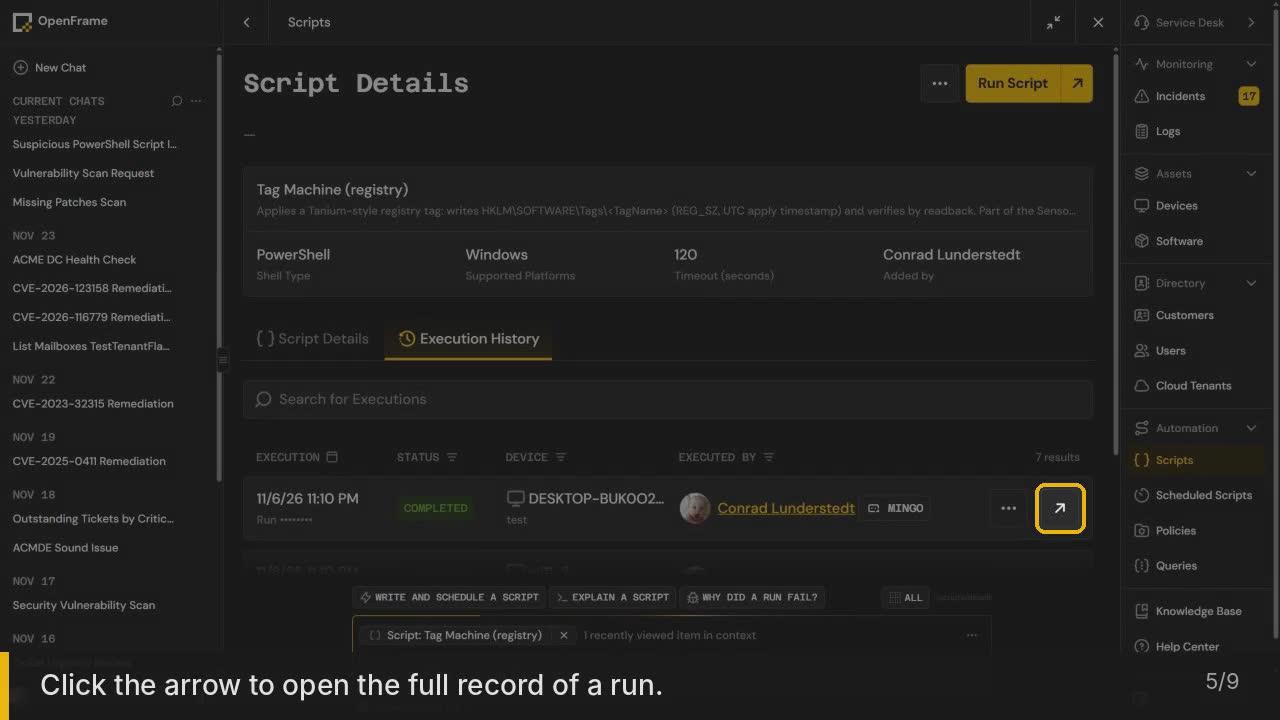
- Click the Execution History tab.
- Check each device's Status and Result, and open a run for the full record.
Where results go
Runs are queued and report back as each device finishes, so a result can take anywhere from a few seconds to a few minutes to appear. You'll find them in three places:
- The script's Execution History — open the script (Automation → Scripts) and click the Execution History tab. This is the best place to check a run.
- The schedule's Execution History — for scheduled runs, open the schedule (Automation → Scheduled Scripts) and use its Execution History or Schedule Runs tab.
- Monitoring → Logs — the running event feed for your whole tenant, where each run also appears as an RMM entry.
Reading Execution History
Each row is one run on one device:
- Execution — when it ran, and the execution ID (runs started together share an ID).
- Status — e.g. COMPLETED.
- Device — the machine it ran on, and its customer.
- Executed By — who started it; a MINGO badge means Mingo ran it for that person.
- Result — the script's output (e.g. TAGGED: IsVM = …).
Sort and filter by date, and open a run's details in a new tab for the full record.
Reading the Logs stream
Monitoring → Logs is a running feed of everything happening in your tenant. Script runs appear with Tool = RMM and Source = the device that ran it, with Log Details such as Command finished (exit code 0). An exit code of 0 means the script reported success.
Each row shows Log ID, Status (e.g. INFO), Tool, Source and Log Details. Use the column filters to narrow by Status or Tool, and Refresh to pull the latest.
The same entries appear on each device's Overview tab, in its log list.
Debugging a failure
When a run doesn't do what you expected, work through this:
- Did it even run? Look for the device in the script's Execution History. No entry usually means the device was offline or the OS didn't match the script.
- What did it say? Read the Result. Most scripts print what they did, or why they stopped.
- Did the inputs land? The most common silent failure is a variable passed the wrong way — a value sent as a Script Argument when the script reads an Environment Variable (or vice versa). Re-open the script's Syntax and confirm which it expects, then re-run with the value in the right field. (Full explanation in Run a Script on a Device.)
- Did it time out? If the script does more than its Timeout allows, OpenFrame stops it. Raise the timeout on the script (or on the run) and try again.
- Ask Mingo. The Why did a run fail? quick action on the Scripts pages has Mingo look at the run with you.
- Use Test Script from the editor so you're debugging one result, not a fleet of them.
Common questions
How do I see a script's output? Open the script and go to its Execution History tab. Each row shows the device, status and the script's result.
How long until results appear? Anywhere from a few seconds to a few minutes, as each device finishes.
What does exit code 0 mean? The script reported success. You see it in Monitoring → Logs as Command finished (exit code 0).
How do I know if Mingo ran a script? Executed By shows a MINGO badge.
My script failed. Where do I start? Check it ran at all in Execution History, then read the Result, then the log entry for that device. Mingo's Why did a run fail? quick action can help.
Where are results for scheduled scripts? On the schedule's Execution History or Schedule Runs tab.
Quick checklist
- Found the run in the script's Execution History
- Read the Status and Result for each device
- For failures, confirmed the device was online and OS matched
- Re-checked Argument vs Environment Var for any input that didn't take
- Raised the Timeout or re-tested on a single device when needed
What's next
That completes Phase 5 — Scripts & Automation. Next up is Phase 6 — Tickets & PSA Workflow, where script-driven fixes and alerts start flowing into tickets — and where Mingo AI lends a hand.
Checked against OpenFrame 1.7 (November 2026). Screens and defaults may shift between releases — when in doubt, what's in your console wins.