
Track Time with Worktime
Phase 6 — Tickets & PSA Workflow · OpenFrame Onboarding
OpenFrame records the time your team spends on tickets and customers. Use the time tracker to clock time as you work, or add it by hand afterwards. Everything lands on the Worktime page and on each customer's Worktime tab.
Quick steps
- Click the clock icon (Time tracker) at the bottom of the chats sidebar.
- Pick the Ticket or Customer, add a note if you like, and press play to start the timer.
- Stop it when you're done. The entry appears under Service Desk → Worktime.
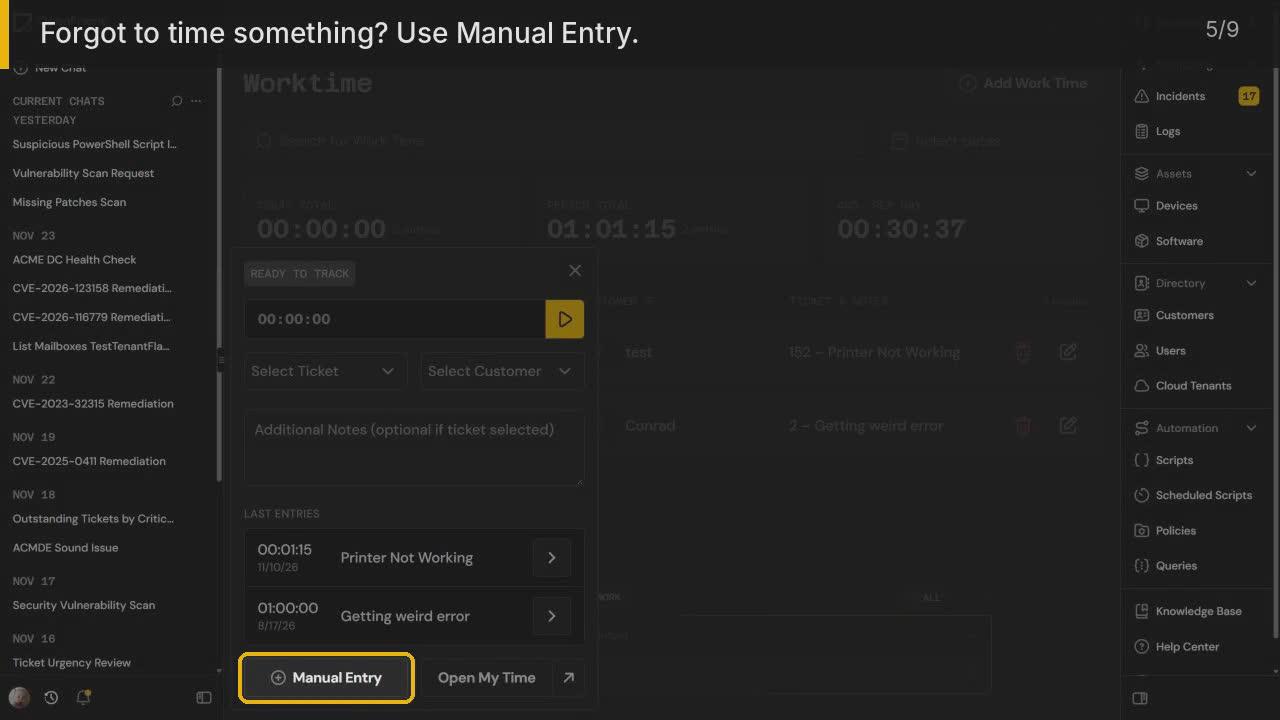
- Forgot to time something? Use Manual Entry in the tracker, or Add Work Time on the Worktime page.
The time tracker
The Time tracker sits at the bottom of the chats sidebar, next to your account and the notifications bell. It opens a small panel:
- Ready to track and a timer showing 00:00:00, with a play button to start.
- Select Ticket and Select Customer, so the time is booked to the right work.
- Additional Notes (optional when a ticket is selected).
- Last Entries: your most recent time entries, with an arrow to open each one.
- Manual Entry to add time you didn't track live, and Open My Time to jump to the Worktime page.
Adding time by hand
Click Add Work Time on the Worktime page, or Manual Entry in the tracker. The Manual Entry form has:
- Employee: who did the work (defaults to you).
- Work Time: hours, minutes and seconds.
- Date.
- Ticket and Customer.
- Notes: optional if you picked a ticket.
Click Add Entry to save it.
The Worktime page
Open the navigation menu → Service Desk → Worktime.
- At the top: Today Total, Period Total and Avg. Per Day, each with its number of entries.
- Search for Work Time and Select dates narrow the list to a period.
- Each row shows the Employee, the Time and date, the Customer, and the Ticket & Notes. Filter the Employee and Customer columns with their funnels.
- Use the pencil to edit an entry and the bin to delete it.
The Mingo chat beside the page offers Summarize by time and Find unlogged work quick actions.
Each customer also has a Worktime tab (Directory → Customers → the customer) showing only the time logged against that client.
Common questions
Does OpenFrame have time tracking? Yes. Use the Time tracker in the chats sidebar to clock time live, or add entries by hand. Everything is listed under Service Desk → Worktime.
Can I log time against a ticket? Yes. Pick the ticket in the tracker or the manual entry form.
Can I log time against a customer without a ticket? Yes. Pick just the Customer.
Can I add time I forgot to track? Yes. Use Manual Entry or Add Work Time, and set the date.
Can I log time for someone else? Yes. Change Employee in the manual entry form.
How do I see time per customer? Filter the Worktime page by Customer, or open the customer's Worktime tab.
How do I see how much time was logged this week or month? Use Select dates. Period Total and Avg. Per Day update to match.
Can Mingo help with timesheets? Yes. Use Summarize by time, or Find unlogged work to spot work with no time against it.
Quick checklist
- Found the Time tracker in the chats sidebar
- Started and stopped a timer against a ticket
- Added a manual entry
- Checked the Worktime page totals for a date range
What's next
See time per client on each customer's Worktime tab (Organizations & Multi-Tenancy), and keep tickets moving with Ticket Lifecycle — From Open to Resolved.