
Incidents
Incidents is your single view of every anomaly OpenFrame has found across your fleet. This guide covers where to find incidents, what each incident tells you, and how to act on it.
Navigate to: Navigation menu → Monitoring → Incidents
Quick steps
- Open the navigation menu → Monitoring → Incidents.
- Open an incident to read its summary, device, customer and severity.
- Act on it: Fix with Mingo, Create Ticket, or change its status.
- Snooze what can wait, and resolve what's fixed.
Incident Views
Incidents are split into three tabs, depending on where they are in their lifecycle:
| View | What it shows |
|---|---|
| Current | All active incidents, with their Device, Severity, Status and Assignee |
| Snoozed | Known problems you want to keep tracking but not actively work. Incidents can be snoozed for hours, days or weeks |
| Archived | Closed and completed incidents |
Incident Details
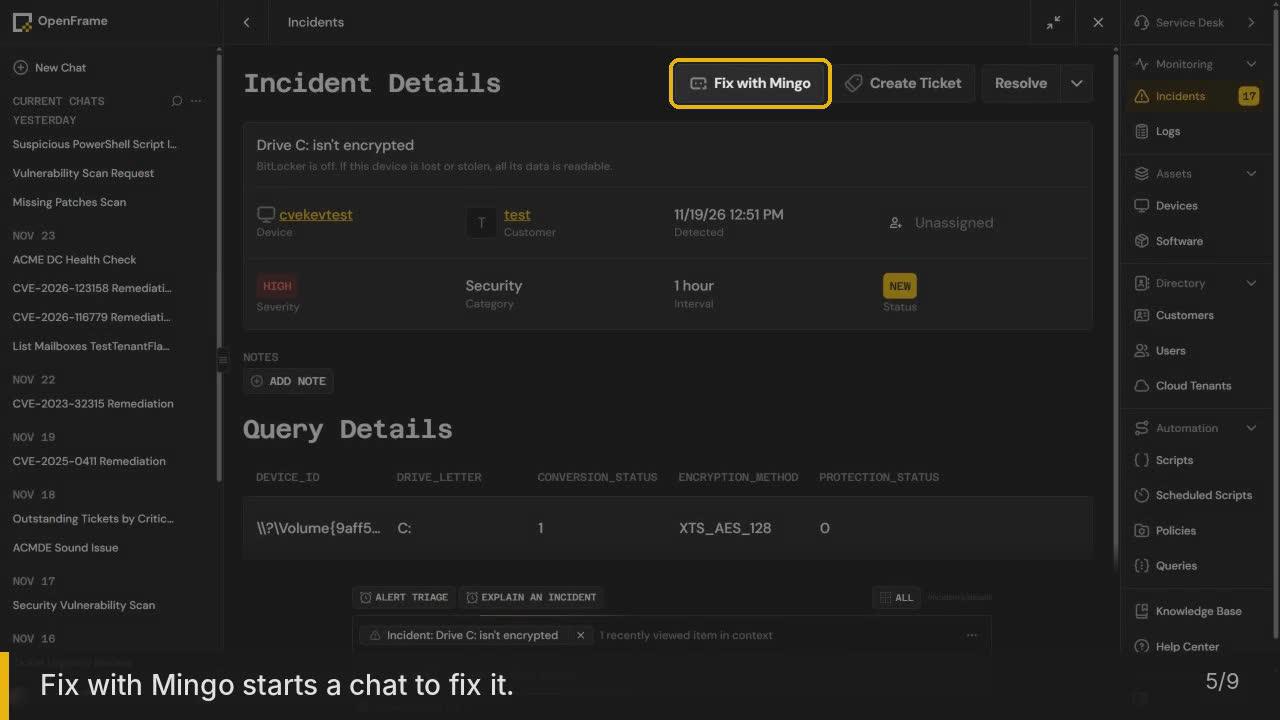
Select any incident to open its Incident Details page.
- Summary: The incident details and description appear at the top of the page.
- Device and customer: Every incident is linked to a specific device and customer.
- Severity: Calculated automatically against predefined standards, so you don't have to triage by hand.
- Add Note: Record context, findings or updates for your team.
- Query Details: Additional information specific to this incident.
Taking Action
From the Incident Details page you have three options. (Most of them are also on each row of the Incidents list, so you can act without opening the incident.)
1. Fix with Mingo
Select Fix with Mingo to go straight into a session with Mingo, prepopulated with the finding, the device and the other information needed to fix it.
Expected result: Mingo already has the full context, so you can start working on the fix without explaining the problem.
2. Create a Ticket
Select Create Ticket to assign the work to a technician. The ticket carries over all the relevant information from the incident.
Expected result: A new ticket containing the incident details, ready to assign.
3. Set the Incident Status
Update the status to match where the incident stands. Resolve is a button; the others are in the … menu:
- Acknowledge: Show the team you've seen it and are on it. Use Assign user to make clear who owns it.
- Snooze: Keep tracking the incident without actively working it. It moves to the Snoozed tab.
- Resolve: Use this once the problem is fixed. You can add a note recording the steps taken.
- Archive: Remove the incident from view once it has been reviewed. It moves to the Archived tab. Archive Resolved on the list archives every resolved incident at once.
Common questions
What is an incident in OpenFrame? A problem OpenFrame found on a device, such as an unencrypted drive or a nearly full disk, linked to that device and its customer.
How is severity decided? Automatically, against predefined standards, so you don't triage by hand.
Can I snooze an incident? Yes, for hours, days or weeks. It moves to Snoozed.
Can I turn an incident into a ticket? Yes. Create Ticket carries the incident details over.
Can Mingo fix an incident? Fix with Mingo opens a Mingo session that already has the finding and the device.
Can I act without opening the incident? Yes. Most actions are also on each row of the list.
Where do closed incidents go? To the Archived tab.
Need Help?
Ask Mingo: "How do I snooze an incident?" or "Which incidents are assigned to me?" The Incidents page also has Alert triage and Explain an incident quick actions.
🚀 You're ready to start working incidents in OpenFrame!