
Software
The Software section shows all the software deployed across your fleet. From here you can see what's installed, check for known vulnerabilities, and install or update applications on your devices without touching each machine.
Installs and updates run through the standard package manager for each operating system: winget on Windows and Homebrew (shown as Brew) on macOS.
Navigate to: Navigation menu → Assets → Software
Quick steps
- Open the navigation menu → Assets → Software.
- Check All Software for what's installed, what's OUTDATED and which Engine can manage it.
- Use Software Actions → Update Software or Install Software, pick the devices, and run now or schedule it.
- Check Vulnerabilities for known CVEs across the fleet.
Supported platforms
| Platform | Package manager | Status |
|---|---|---|
| macOS (Apple Silicon) | Homebrew | Supported |
| Windows 10 and 11 | winget | Supported |
| macOS (Intel) | Homebrew | Not supported (see macOS → Limitations) |
| Windows Server Editions | winget | Not supported yet (see Windows → Limitations) |
All Software
All Software lists every piece of software deployed across your fleet, along with:
- Current version: The version installed, with OUTDATED when a newer one exists and a note of any older versions still around (e.g. +5 older versions).
- OS: Which platform it's on.
- Engine: The package manager that can manage it (e.g. WinGet), or No package found if OpenFrame can't manage it.
- Auto-update: Whether automatic updates are on for it.
Select the arrow on the right of any entry to see every device that has the software installed, along with its update status.
The list includes everything the agent finds, whether or not OpenFrame can manage it. See Managed vs. unmanaged apps below.
Offline devices: the inventory is the last one the device reported, so offline devices still appear. You can also ask Mingo, for example "Which devices have Google Chrome installed?", and it answers from the same last-known inventory, including offline machines.
Software Actions
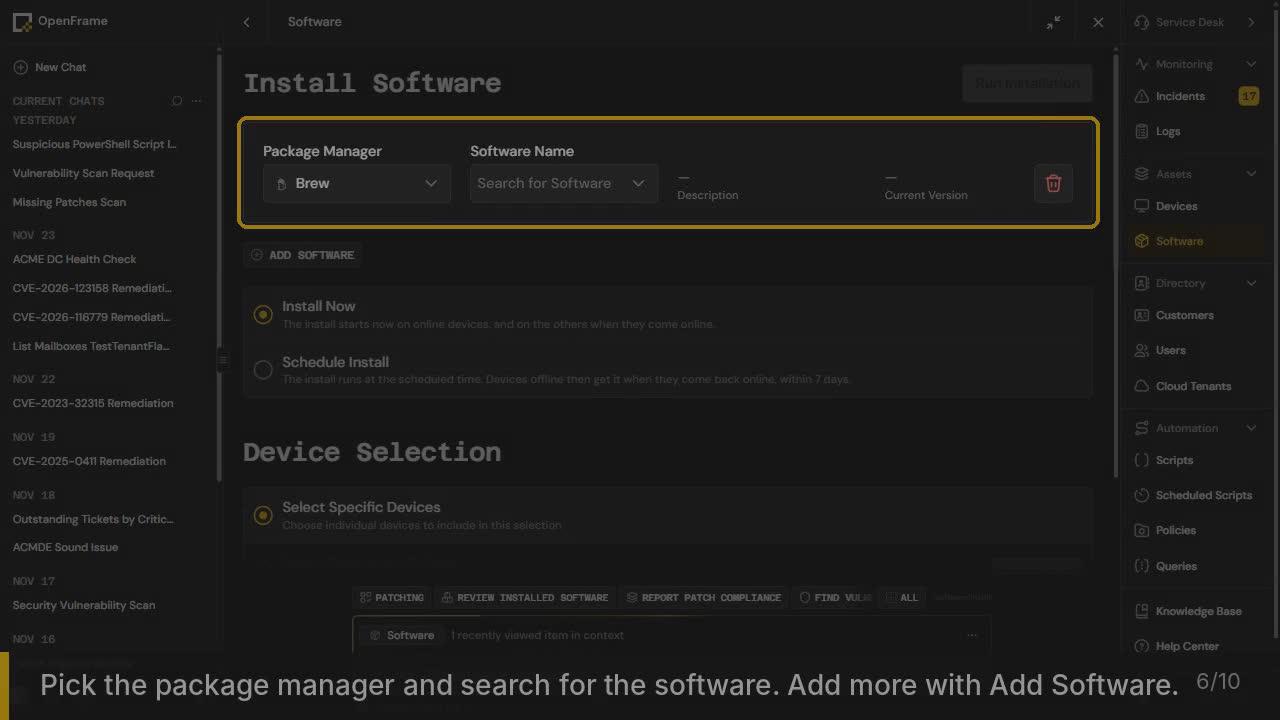
From Software Actions you can update existing software or install new software. Both use the device's package manager: Winget for Windows or Brew for macOS.
Update Software
Use Update Software to bring installed software up to date.
- Choose your package manager: Select Winget or Brew.
- Select the software: Choose it under Software Name. The current available version is displayed.
- Select your devices: Under Device Selection, choose the devices to update. Only devices that already have the software installed appear here.
- Choose when to update:
- Update Now runs the update immediately.
- Schedule Update lets you pick a date and time. You can also choose to use the client's local timezone.
Expected result: The selected devices are updated to the current available version, either straight away or at the scheduled time.
Install Software
Install Software works the same way as Update Software, but for new installations. Device Selection only shows devices that don't currently have the software installed.
Expected result: The software is installed on the selected devices, either straight away or at the scheduled time.
If some devices fail
Each device runs on its own, so one device failing doesn't stop the others. The most common reasons a device fails are:
- Nobody is signed in. Installs and updates need a signed-in user, and on Windows that user must be a local administrator. See When a signed-in user is needed below.
- The device can't use a package manager, for example an Intel Mac or a Windows Server. These devices can't be included in an install or update.
- The network blocks the download. See Network and security requirements below.
The error for each device is shown in the execution history.
Vulnerabilities
Vulnerabilities lists the known vulnerabilities across your fleet's software, with when each was Discovered and how long it's been open. Select any CVE to drill down and see which software versions are impacted.
The Mingo chat beside the page offers quick actions for this section, such as Patching, Report patch compliance, Find vulnerable software and Update an app everywhere.
macOS
How it works
OpenFrame manages macOS software through Homebrew, which is set up automatically on your managed Macs.
Managed vs. unmanaged apps
Apps installed through Homebrew are managed automatically. OpenFrame can update them and report their versions with no extra setup. Anything OpenFrame installs for you is managed from day one.
Apps installed any other way are visible, but not manageable. If an application was dragged in from a disk image, downloaded from a vendor's website, or installed from the Mac App Store, OpenFrame shows it in your inventory but can't manage it for you.
Making an existing app manageable
To bring an unmanaged app under management, reinstall it through Homebrew. You have two options.
Ask Mingo. Open Mingo chat and ask it to reinstall the app through Homebrew, for example: "Reinstall Google Chrome through Homebrew on Sarah's MacBook." Mingo takes it from there.
The manual way. Reinstall the app through Homebrew directly on the device. Once it's installed through Homebrew, it becomes manageable immediately, with no further action needed.
Before you reinstall: reinstalling replaces the existing copy of the app. Settings and data are normally kept, but for apps your team relies on, we recommend doing this outside working hours.
Limitations
Software Management is available on Apple Silicon Macs only.
Homebrew ended support for Intel Macs in September 2026 and now installs only on Apple Silicon (M-series) Macs. Because Software Management runs on Homebrew, it can't work on Intel hardware.
OpenFrame therefore supports Software Management on Apple Silicon (M-series) Macs only.
What this means for you:
- On an Intel Mac, OpenFrame doesn't install or update software
- The device still appears in your inventory, and every other OpenFrame feature keeps working normally
- If a Mac already had Homebrew installed before the change, it keeps working as before
Not sure whether a Mac is Intel or Apple Silicon? On the device, open the Apple menu → About This Mac. Apple Silicon Macs show a chip name starting with "Apple M". Intel Macs show an Intel processor.
Windows
How it works
OpenFrame manages Windows software through winget, Microsoft's own package manager for Windows. winget is set up automatically on your managed PCs.
Managed vs. unmanaged apps
Apps installed through winget are managed automatically. OpenFrame can update them and report their versions with no extra setup. Anything OpenFrame installs for you is managed from day one.
Apps installed any other way may still be manageable. winget recognises many applications that were installed by other means, such as a vendor's installer, a download or a bundled setup, and can update those in place. Where it doesn't recognise an application, OpenFrame still shows it in your inventory but can't manage it for you.
Making an existing app manageable
If an application isn't manageable, reinstall it through winget. You have two options.
Ask Mingo. Open Mingo chat and ask it to reinstall the app through winget, for example: "Reinstall Google Chrome through winget on David's laptop." Mingo takes it from there.
The manual way. Reinstall the app through winget directly on the device. Once it's installed through winget, it becomes manageable immediately, with no further action needed.
Before you reinstall: reinstalling replaces the existing copy of the app. Settings and data are normally kept, but for apps your team relies on, we recommend doing this outside working hours.
Limitations
Winget is not available on Windows Server or Enterprise LTSC
editions.
winget is delivered through the Microsoft Store. Windows Server and the Enterprise LTSC editions of Windows 10 and 11 ship without the Store, so winget can't be installed on them. Microsoft doesn't support winget on these editions.
What this means for you:
- On these devices, OpenFrame can't install or update software
- The device still appears in your inventory, and every other OpenFrame feature keeps working normally.
- If a device already had winget installed before, it keeps working as before.
Support for these editions is planned for a future release, using Chocolatey as an additional package manager alongside winget.
Not sure which edition a device is running? On the device, open Settings → System → About and look at Edition. Anything showing "Server" or "LTSC" is not currently supported.
Common questions
Can OpenFrame install and update software on devices? Yes. It uses winget on Windows 10 and 11 and Homebrew on Apple Silicon Macs.
Does OpenFrame do patch management for third-party apps? Yes, for apps winget or Homebrew can manage: update them now or on a schedule from Software Actions.
Can I schedule software updates? Yes. Choose Schedule Update and pick a date and time, optionally in the client's local time zone.
Which devices are not supported? Intel Macs and Windows Server. They still appear in the inventory, but OpenFrame can't install or update software on them.
Why can't OpenFrame update an app it can see? It was installed outside the package manager, so it shows No package found. Reinstall it through winget or Homebrew, or ask Mingo to, to make it manageable.
Why did an install fail on some devices? Usually nobody was signed in (on Windows the user must be a local admin), the device can't use a package manager, or the network blocked the download. Each device's error is in the execution history.
Can I see which devices have an app? Yes. Click the arrow on the app's row, or ask Mingo, for example "Which devices have Google Chrome installed?"
Does the inventory include offline devices? Yes, using the last inventory each device reported.
Network and security requirements
Most devices need no preparation at all. These are the settings that can stop Software Management working.
Allow the software vendors through your proxy
This is the one most often missed. Package managers download each application from the vendor's own servers, not from Microsoft or Apple. Installing Google Chrome fetches it from Google, Zoom from Zoom, and so on.
A proxy that allows only the hosts below will set the package manager up successfully, then fail on every application you try to deploy. If you filter outbound traffic by destination, plan for the vendors of the software you intend to manage.
Hosts to allow
Outbound HTTPS (port 443) from managed devices:
| Host | Used for |
|---|---|
cdn.winget.microsoft.com | the Windows application catalogue |
storeedgefd.dsx.mp.microsoft.com | Microsoft Store catalogue entries |
aka.ms, download.microsoft.com | winget and its prerequisites |
github.com, release-assets.githubusercontent.com | winget and Homebrew downloads |
cdn.oneget.org, www.powershellgallery.com | winget's fallback repair path |
If you inspect TLS, make sure the inspection certificate is trusted by the machine, not only by user profiles. Downloads happen outside a browser and don't use per-user certificate stores.
Application allowlisting on Windows
If you use AppLocker or WDAC, allow:
winget.exe, underC:\Program Files\WindowsApps\Microsoft.DesktopAppInstaller_*- Windows PowerShell, at
C:\Windows\System32\WindowsPowerShell\v1.0\powershell.exe - scripts under
C:\ProgramData\OpenFrame
Allow winget by publisher rather than by path. The folder name contains a version number that changes whenever Microsoft updates it, so a path rule quietly stops matching after an update.
Some hardening baselines also remove the Users group from C:\ProgramData. OpenFrame needs that folder readable, so exclude C:\ProgramData\OpenFrame if yours does.
When a device needs repairing first
Two errors mean Windows itself is damaged, not misconfigured. Retrying won't clear them:
| Message in the execution history | What it means |
|---|---|
Deployment failed with HRESULT: 0x80073CF9 | Windows can't write its app installation state |
Attempt to write a readonly database | the Windows app database is corrupted |
Installing pending Windows updates and restarting usually clears both. If not, run DISM /Online /Cleanup-Image /RestoreHealth and sfc /scannow on the device before using Software Management on it.
Still not working?
Send us the device name and the error text from the execution history — it names the failing step directly.
When a signed-in user is needed
Homebrew and winget both work per user account, so most operations need someone signed in on the device. A locked screen counts as signed in.
| Operation | macOS (Homebrew) | Windows (winget) |
|---|---|---|
| Checking whether the package manager is installed | Not needed | Needed |
| Setting up the package manager | Needed | Needed |
| Installing or updating an app | Needed | Needed, and the user must be a local administrator |
macOS
- Homebrew is set up for the person signed in at that moment and belongs to that account.
- Apps are installed and updated as the signed-in user. Administrator rights aren't required.
- "Signed in" means the account whose desktop is currently on screen.
Windows
- winget is set up or repaired for the signed-in user.
- Apps are installed and updated as the signed-in user, with administrator rights. A standard (non-admin) account isn't enough.
- An active Remote Desktop session counts; a disconnected one doesn't. If several people are signed in, OpenFrame uses the person at the physical screen first.
When nobody is signed in
- Setup waits. Devices check their package manager every 15 minutes, and setup starts shortly after someone signs in.
- Installs and updates don't run on that device. They fail, and the execution history shows why. Other devices in the same install or update run normally.
| Message in the execution history | What it means |
|---|---|
no active interactive user | macOS: nobody was signed in |
no active interactive session | Windows: nobody was signed in |
interactive user is not a local administrator or no linked token for the interactive user | Windows: the signed-in account isn't a local administrator |