
Reviewed 24/11/2026
The Device Details page is the single-device control center in OpenFrame. From here you can review a managed device's full inventory (hardware, OS, network, accounts, software), check its incidents, policies, security posture and vulnerabilities, see its tickets and logs, inspect the agents reporting on it, run remote sessions and scripts, and manage the device's lifecycle.
This guide walks every section and action on the page, with notes on what each is for and when you'd reach for it.
Quick steps
- Go to Assets → Devices and click the arrow on a device's row.
- Read the header: name, status, last update, and the Remote Control and Remote Shell buttons.
- Use the tabs for details, and … for actions such as Run Script or Reboot Device.
Getting to the page
Open the navigation menu → Assets → Devices, then pick a device from the list. The page opens beside your Mingo chat, so you can ask Mingo about the device you're looking at. Each device has its own detail URL of the form:
ini/devices/details?id=<device-uuid>&tab=<tab-name>
The tab query parameter controls which tab is shown (e.g. &tab=security), so you can deep-link or bookmark a specific tab for a device.
Use Back (top left) to return to the device list.
Page header
The header stays visible no matter which tab is open.
Device name and status. The device's display name appears as the page title, with a status badge (e.g. MANAGED) and how long ago it was last updated (e.g. Updated 3m ago).
Action buttons (top right):
- Remote Control — launches a remote desktop session to the device. Use it for interactive, GUI-level support.
- Remote Shell — opens a remote command-line session on the device. Use it for scripted or terminal-based work.
- … (More actions) — opens a menu with the actions below.
Remote Control and Remote Shell need the device online and the relevant agent (e.g. MeshCentral) connected. If they look unavailable, check the Agents tab.
The Mingo chat beside the page also offers device quick actions, such as Why is this device slow? and Fix this device's CVEs.
The "…" actions menu
| Action | What it does | Notes |
|---|---|---|
| Run Script | Opens the script runner targeted at this device. | Use it to push a one-off or saved script to the device. |
| Edit Device | Set the device's friendly Display Name (e.g. "Second Reception Machine") and its Remote Access Permission. | Remote Access Permission: Customer Default, Approval Required, Notify Only, Silent Access or Deny Access. |
| Manage Files | Remote access to the device's file system. | Supports Download, Copy, Rename, Cut, Delete, Upload and New Folder. |
| Reboot Device | Initiates a remote reboot. | |
| Delete Device | Permanently removes the device. | Destructive. Use with care. |
Tabs
The detail view is organized into these tabs: Overview, Vulnerabilities, Incidents, Policies, Security, Agents, Tickets, Hardware, OS, Network, Users, Local Accounts, Directory, Software, Device Logs (Beta), Remote Sessions and Assigned Articles.
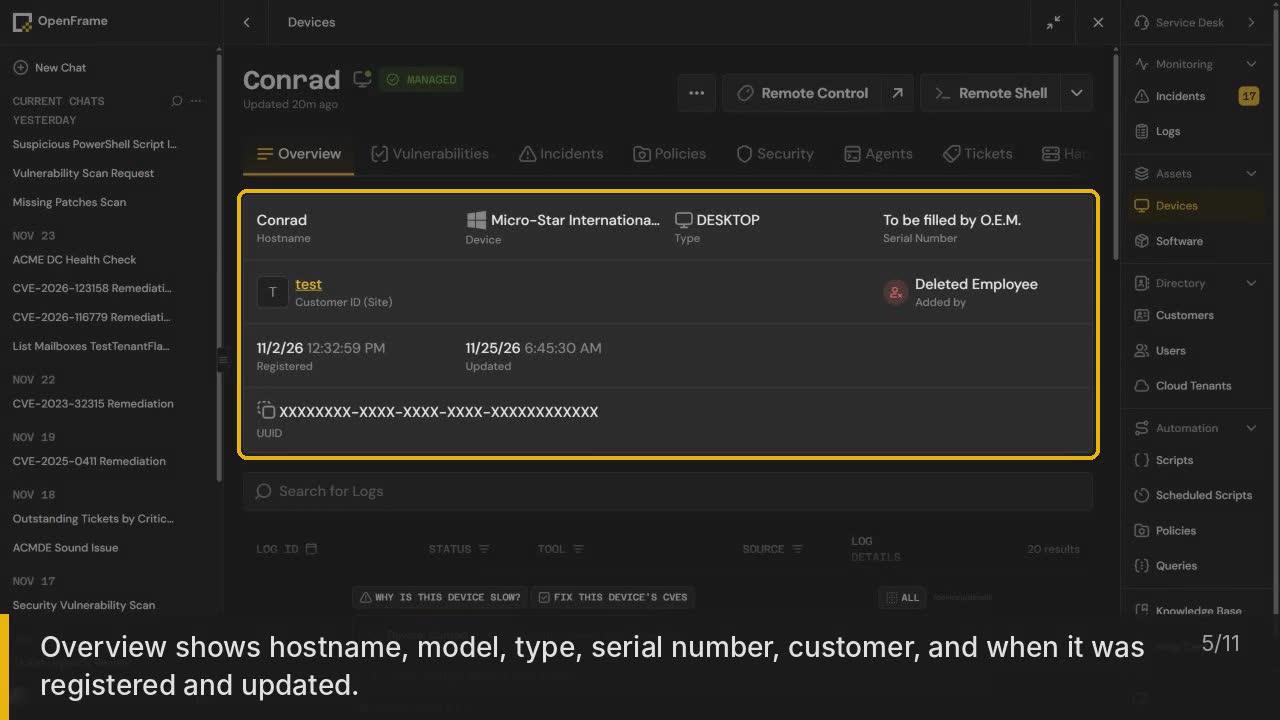
Overview
The device's identity fields:
- Hostname — the device's network hostname.
- Device — manufacturer/model (e.g. Microsoft Corporation, Virtual Machine).
- Type — device form factor (e.g. DESKTOP).
- Serial Number — hardware serial.
- Customer ID (Site) — the customer the device belongs to.
- Added by — who enrolled it.
- Registered — when the device was first enrolled.
- Updated — timestamp of the most recent data refresh.
- UUID — the device's unique identifier, with a copy button.
Below the fields is the device's recent log activity (status, tool and source), with a quick view per entry.
Vulnerabilities
Lists known vulnerabilities (CVEs) tied to installed software. When clean, it shows that no vulnerabilities were found. Otherwise it lists each CVE so you can work through them, or ask Mingo to Fix this device's CVEs.
Use it as the actionable companion to the Software tab for risk remediation.
Incidents
Open incidents raised for this device by monitoring (for example Disk is almost full or Drive C: isn't encrypted), with Severity, Status and who it's Assigned to.
Policies
The monitoring policies that apply to this device. Empty until you assign the device to a policy (Phase 4).
Security
The device's overall security posture, grouped into sections:
- Encryption — Disk Encryption status.
- Security Agents — versions/status of the OpenFrame Agent, osquery, and Orbit.
- Posture — Policy Compliance: Failing Policies and Total Issues.
Agents
Status of every management agent reporting on the device. For each agent (e.g. Fleet, MeshCentral, OpenFrame Client, Osquery, OpenFrame Chat) you'll see Status (PENDING while the agent installs, then ONLINE or OFFLINE), Last Seen, ID, and Version where applicable. On a newly enrolled device every agent shows a card straight away, and each PENDING card goes live as that agent finishes installing.
This is the first tab to check when remote actions fail or data looks stale — an offline agent usually explains it.
Tickets
Tickets linked to this device, with search and a Status filter.
Hardware
Physical/virtual resource inventory.
- Disk Info — one card per drive showing Current Usage (%), Used Space, Free Space, and Total Capacity, with a usage bar. Virtual/partition-less drives may show N/A for some fields.
- Memory — Total Memory.
- CPU — processor model, Physical Cores, Logical Cores, and architecture Type (e.g. x86_64).
Use this tab to verify capacity, plan upgrades, or chase down performance complaints.
OS
The operating system: platform, version, build, architecture and OS UUID, plus Boot & Time (last boot and uptime).
Network
- Public IP / IP Address — the device's internet-facing address.
- Local IPv4 Addresses — internal interface addresses.
Use it to confirm connectivity details and reachability.
Users and Local Accounts
- Users — the directory users linked to this device (for example from Microsoft 365).
- Local Accounts — a searchable list of the accounts on the machine itself (local and roaming), with their ID.
Use them for security review (unexpected accounts) and audit.
Directory
The device's record in a connected directory, such as Microsoft 365. Shows No directory records if none is linked.
Software
A searchable, sortable inventory of installed software, with a result count and, for each item, the name, publisher, version and any vulnerability flags (e.g. OUTDATED, 1 CVE).
Use the search box to find a specific app and the vulnerability flags to spot risky items.
Device Logs (Beta)
Live agent logs from the device, filterable by level (DEBUG, INFO, WARN, ERROR) and time range, with Auto-Update. Useful when an agent misbehaves.
Remote Sessions
Recorded remote sessions for this device.
Assigned Articles
The Knowledge Base articles assigned to this device. Assign or unassign articles, search them, and filter by Article Tags.
Common administrator workflows
Onboard / verify a new device. Check the Overview tab (correct customer, recent Updated time) → Agents tab to confirm all agents are ONLINE → Security tab to confirm encryption.
Respond to a support request. Confirm the device is online → use Remote Control (GUI) or Remote Shell (CLI) → optionally Run Script from the "…" menu for a repeatable fix → check Tickets and Device Logs afterward.
Security review. Security tab (encryption, agents, posture) → Incidents → Vulnerabilities → Local Accounts for an account audit.
Retire a device. Use … → Delete Device for permanent removal.
Common questions
Can I see a device's hardware, like CPU, RAM and disks? Yes. The Hardware tab shows the system, uptime, CPU, memory and a card per disk with used and free space.
Can I see what software is installed? Yes. The Software tab lists every app with its publisher, version and any vulnerability flags.
Can I see a device's IP address? Yes. The Network tab shows the public IP and local IPv4 addresses.
Does OpenFrame show whether a disk is encrypted? Yes. The Security tab shows disk encryption status, the agents' versions and policy compliance.
Can I see who is logged in or which accounts exist on a machine? Users shows linked directory users and Local Accounts lists the accounts on the machine itself.
Can I see the agent's own logs? Yes. Device Logs (Beta) shows live agent logs filtered by level and time range.
Can I reboot or delete a device from here? Yes, from the … menu. Delete Device removes it and can't be undone.
Why are Remote Control and Remote Shell missing or greyed out? The device is offline or an agent isn't healthy. Check the Agents tab.
Notes and tips
- The page is read-mostly: most tabs show inventory and posture data refreshed from agents. The actionable controls are the header buttons (Remote Control, Remote Shell, "…" menu) and the Mingo chat beside the page.
- Data freshness depends on agent check-ins — see Updated on the Overview tab and Last Seen per agent.
- Deep-link straight to any tab via the
tab=URL parameter. - Delete Device is destructive and can't be undone.