
Run Script lets you execute a saved script on a managed device, straight from the Device Details page. It's the fastest way to push a remediation, diagnostic, or maintenance task to a single device without opening a remote session.
This guide covers how to launch the script runner, pick a script, set its options, run it, and find the results.
Where to find it
- Open the navigation menu → Assets → Devices and select the target device.
- On the device's detail page, click the … (More actions) button at the top right of the header.
- Choose Run Script from the menu.
The same Run Script action is in the … menu on each row of the Devices list.
The device has to be online with a healthy agent for scripts to run. Check the Agents tab if results never show up.
Step 1: Select Script
Clicking Run Script opens the Select Script dialog, listing your script library.
- Search for Scripts — a search box at the top. Type any part of a script's name to filter the list.
- Each result is a card with the script name and a short description of what it does. Read the description: many scripts are OS-specific or need arguments.
- Click a script's card to pick it.
Tip: if a name doesn't match (e.g. "Speedtest" as one word), try a shorter fragment ("speed").
Step 2: Set the options and run
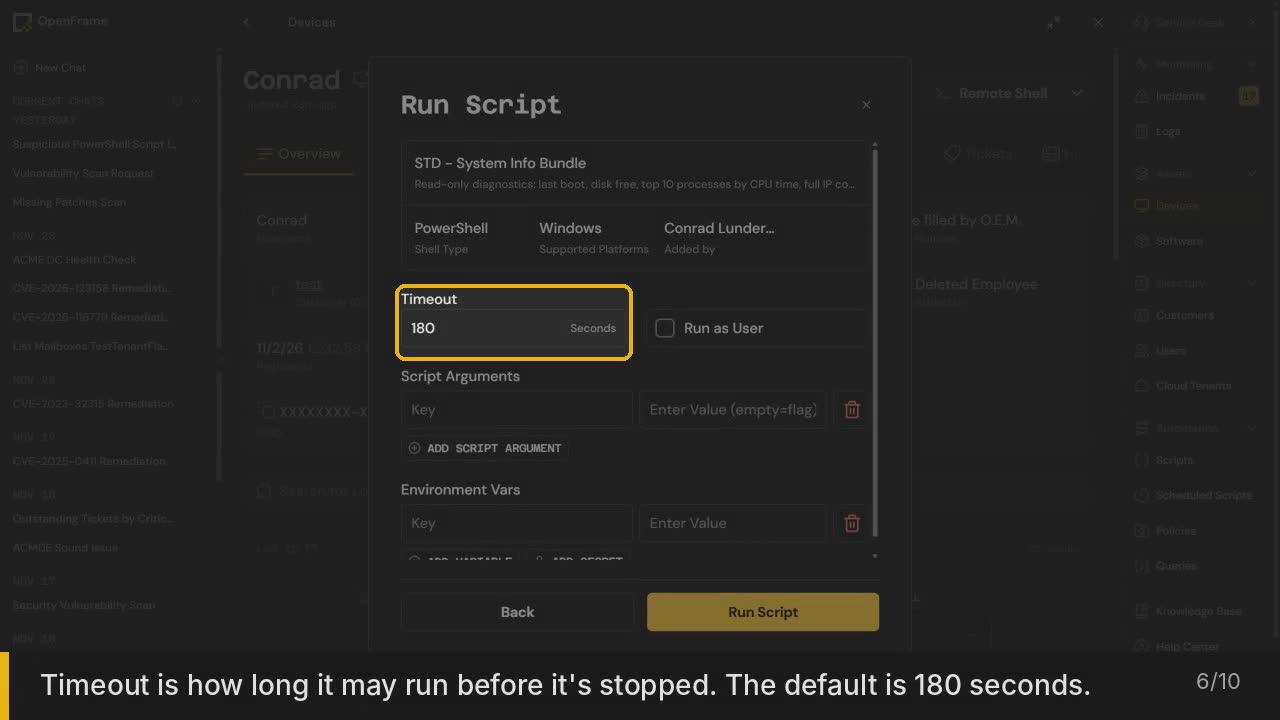
Picking a script opens the Run Script dialog for it. At the top you'll see the script's Shell Type (e.g. PowerShell), Supported Platforms and who it was Added by. Check the platform matches the device.
Then set:
- Timeout — how many seconds the script may run before it's stopped (default 180).
- Run as User — run in the signed-in user's session instead of as the system account. Off by default; turn it on for things like per-user printer mappings.
- Script Arguments — click Add Script Argument for each argument the script expects (a key, and a value; leave the value empty for a flag).
- Environment Vars — Add Variable for plain values, Add Secret for anything sensitive.
Click Run Script to dispatch it, or Back to pick a different script.
There's no separate confirmation step after Run Script — clicking it dispatches the job immediately. Only run scripts you actually mean to run on the live device.
Viewing results
Results aren't instant — the agent has to run the script and report back, so a new entry can take anywhere from a few seconds to a few minutes to appear.
Each run is logged as an RMM entry, for example Command finished (exit code 0):
- on the device's Overview tab, in its log list (use Quick view on an entry for the details), and
- under Monitoring → Logs for every device (use Refresh to pull the latest entries).
An exit code of 0 means the script reported success.
Common workflows
Quick diagnostic. … → Run Script → search for the diagnostic → pick it → Run Script → check the device's log list for the result.
Targeted remediation. Search for the specific fix script, confirm its supported platforms match the device, add any arguments it needs, run it, then verify the result in the logs.
Ask Mingo instead. For one-off jobs, you can also ask Mingo in the chat beside the page to run a script on the device; anything your guardrails gate comes back to you for approval first.
Common questions
How do I run a script on one device? Open the device, click … → Run Script, pick the script, set the options and click Run Script.
Can I run a script on many devices at once? Yes, from Automation → Scripts or as a schedule under Scheduled Scripts. Run Script on a device targets only that device.
Can a script run as the logged-in user? Yes. Turn on Run as User to run it in the signed-in user's session instead of as the system account.
How do I pass parameters to a script? Click Add Script Argument and enter a key and a value. Leave the value empty for a flag.
How do I pass a password or API key safely? Use Add Secret under Environment Vars instead of a plain variable.
How long can a script run? Up to the Timeout you set. The default is 180 seconds.
Where do I see the output? In the device's log list on its Overview tab, and under Monitoring → Logs.
Notes and tips
- Run Script targets this one device. For many devices at once, use Automation → Scripts or Scheduled Scripts.
- Always read the script description — many are OS-specific or have prerequisites.
- If results never show up, the device or its agent may be offline — check the Agents tab.