
Using the Knowledge Base & Help Center
Reviewed 24/11/2026
Platform Navigation · OpenFrame Onboarding
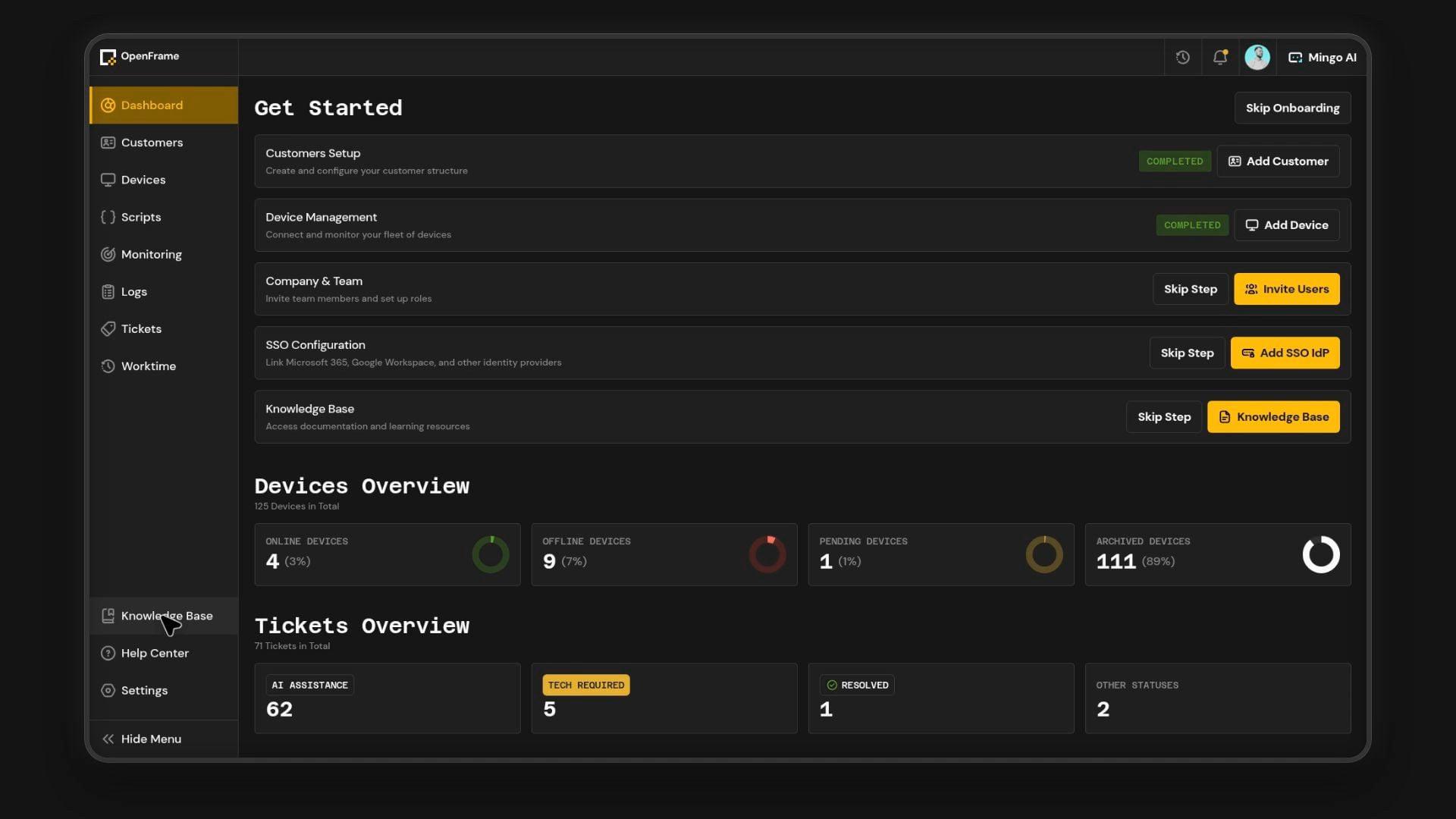
Two resources sit near the bottom of the navigation menu on the right — the Knowledge Base and the Help Center — and they do different jobs. One is OpenFrame's help hub for you; the other is your documentation store. This guide sorts out which is which and when to reach for each.
Quick steps
- For OpenFrame's own help, open the navigation menu → Help Center: guides, release notes, FAQs, support tickets and Contact Support.
- For your team's own articles, open Knowledge Base.
- Click Add Article, or Generate with AI to have Mingo draft one, and file it in a folder.
- Attach articles to customers or devices from their Assigned Articles tab.
Help Center — OpenFrame's help hub
Open Help Center for a hub of product resources, each as its own card:
- Onboarding Guides — step-by-step product walkthroughs (these very guides).
- Development Roadmap — what OpenFrame is building next.
- Product Releases — version history and release notes.
- Bug-fixes & Enhancements — recently shipped fixes and improvements.
- Support Tickets — open and manage your support requests.
- FAQs — quick answers about how OpenFrame works.
- Trust Center — security, compliance and AI governance, continuously monitored.
- Knowledge Base — guides and references for the OpenFrame platform.
- Privacy Policy, Terms of Service, Payment Terms and License — the legal pieces.
At the top, Contact Support gets you to the team, and Book a Call books an onboarding call where a specialist sets up your first customer and deploys an agent with you.
Reach for the Help Center when you want to learn the product, check what's new, or get unstuck — it's the "help me understand OpenFrame" destination.
Knowledge Base — your article store
Open Knowledge Base to build and browse your own documentation — runbooks, client-specific notes, internal procedures. It's organized like a filing cabinet:
- Folders — group related articles. Create one with New Folder; there's a top-level folder to start from.
- Add Article — write a new entry.
- Search for Articles — find anything fast; Filter by tags narrows by article tag.
- Archive — retire articles you no longer need without deleting them.
- Assign to customers and devices — open a customer or a device and use its Assigned Articles tab to attach the articles that apply. The tab has search and an Article Tags filter.
- Generate with AI — next to Add Article; Mingo drafts an article for you to review before it's created. The Mingo chat beside the page also offers Write a KB article, Find an answer and Draft a user security guide.
Each item shows its name and created date, and a Draft badge until it's published. Use this for the knowledge your team generates and needs to find again.
Which one do I want?
- "How does this OpenFrame feature work / what changed?" → Help Center.
- "What's our procedure / what did we document for this client?" → Knowledge Base.
In short: Help Center is for consuming OpenFrame's help; Knowledge Base is for creating and curating your own.
Common questions
How do I contact OpenFrame support? Open Help Center and click Contact Support, or open a request under Support Tickets.
Can I get help setting up? Yes. Help Center has Book an onboarding call: a specialist sets up your first customer and deploys an agent with you.
Where are the release notes and roadmap? In Help Center: Product Releases, Bug-fixes & Enhancements and Development Roadmap.
Does OpenFrame have a knowledge base for my own documentation? Yes. Knowledge Base holds your team's articles in folders, with search and tag filters.
Can AI write a knowledge base article? Yes. Click Generate with AI next to Add Article, or use the Write a KB article quick action. Mingo drafts it for you to review.
Can I attach articles to a specific customer or device? Yes. Use the Assigned Articles tab on the customer or the device.
Can I remove an article without deleting it? Yes. Archive it.
Where is the security and compliance information? In Help Center → Trust Center.
Quick checklist
- Opened the Help Center and scanned its cards (Onboarding, Roadmap, Releases, FAQs, etc.)
- Opened the Knowledge Base and saw the folder/article structure
- Created or browsed an article with Add Article / Search
- Knew the rule: Help Center = learn OpenFrame, Knowledge Base = your own docs
What's next
That's the help and documentation layer. Next in getting oriented, see the device detail surfaces — starting with Reading the Device Software Tab.
Checked against OpenFrame 1.7 (November 2026). The Help Center cards and Knowledge Base tools evolve between releases — what's in your console wins.